Moving Files From Windows To An iPhone, Properly
How to transfer files from Windows to iPhone without iTunes. The official Apple route, the newer Phone Link method, and the one limit most guides get wrong.
By Unespc

To transfer files from Windows to iPhone, the official route is Apple's Devices app. Connect over USB or Wi-Fi, open the app, then drag a file from your Windows device onto an app in the Apple Devices window. That is the short answer.
The longer answer is that there are three real methods now, one of them is new, and a lot of the guides going around describe it wrong.
I move files between a Windows desktop and an iPhone most days. Here is what actually holds up.
What is the official way to transfer files from Windows to iPhone?
The Apple Devices app. Not iTunes.
This trips people up because the muscle memory is a decade old. Apple split iTunes on Windows into separate apps, and device file sharing lives in Apple Devices now, which runs on Windows 10 and Windows 11.
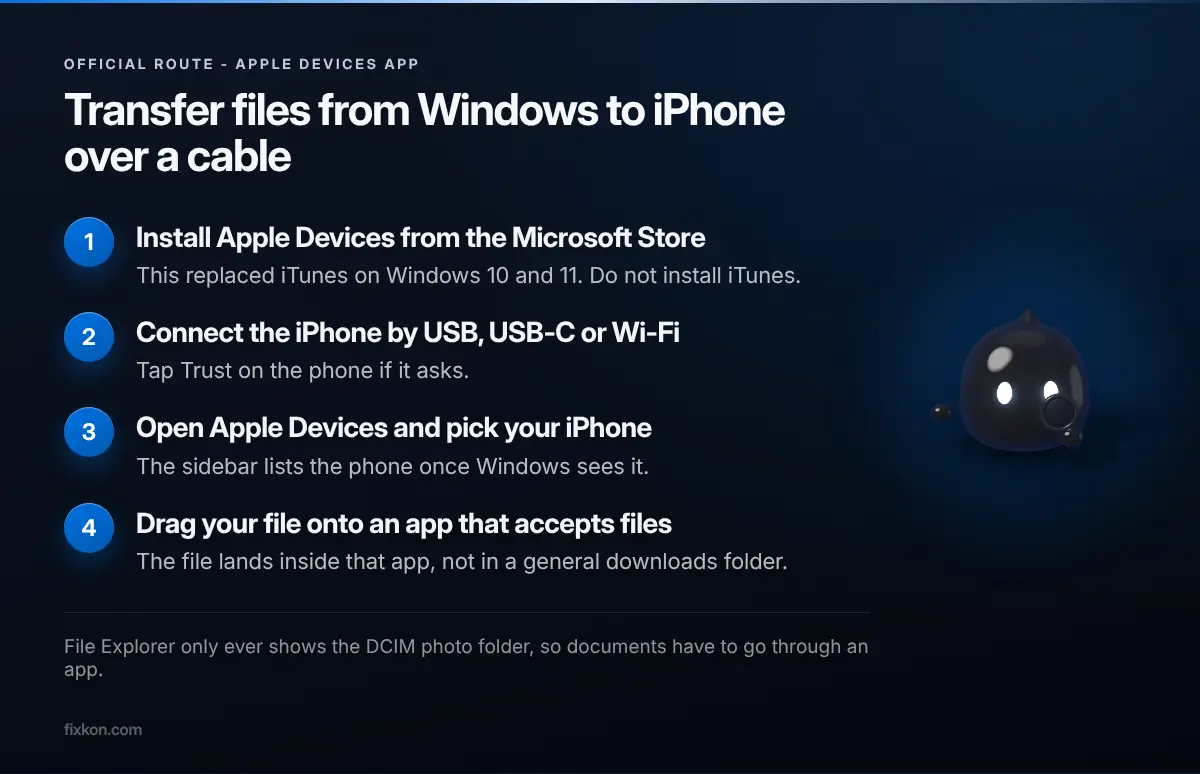
- Install Apple Devices from the Microsoft Store. It runs on Windows 10 and Windows 11. Do not install iTunes.
- Connect the iPhone by USB, USB-C or over Wi-Fi. Tap Trust on the phone if it asks.
- Open Apple Devices and pick your iPhone in the sidebar.
- Drag your file onto an app that supports file sharing. VLC, Documents, whatever reader you use.
The file lands inside that app's storage rather than in a general downloads folder, which is the part that confuses people. It is not elegant. It works every time, which counts for more.
Why does File Explorer only show my photos?
Because Windows mounts an iPhone as a camera, not as a drive.
Open your iPhone in File Explorer and you get Internal Storage, then DCIM, then a pile of folders full of photos and videos. No documents, no music, no downloads. People assume their phone is broken or that something is hidden. Neither is true, that is just the whole surface Windows gets.
So if you are trying to copy a PDF into File Explorer and it refuses, stop. That path does not exist. Use an app route instead.
Can Phone Link do it instead?
This is the newer option and the one worth knowing about.
Microsoft started rolling iPhone file sharing out to Windows Insiders in December 2024 through Phone Link on the PC and Link to Windows on the phone. Requirements are an iPhone on iOS 16 or later, a PC on Windows 10 or 11, and enrollment in the Insider Program. Press coverage has reasonably called it AirDrop for Windows, which is the right shape even if the plumbing is different.
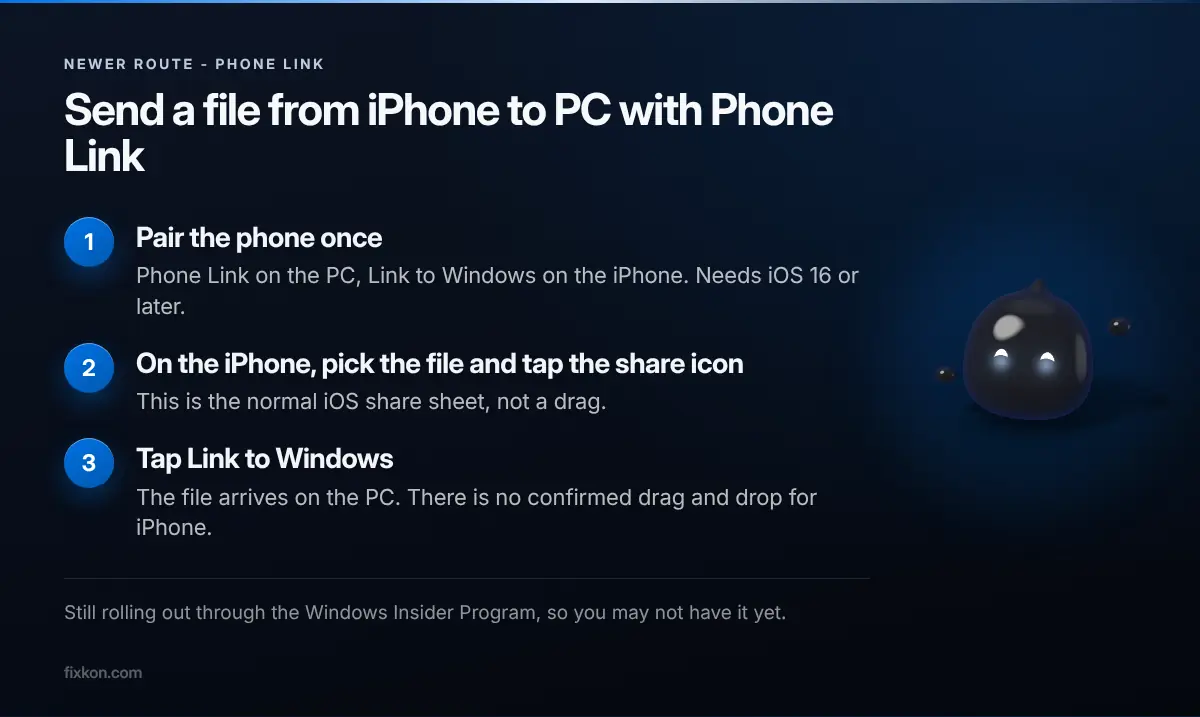
- Pair the phone once. Phone Link on the PC, Link to Windows on the iPhone.
- On the iPhone, pick the file and tap the share icon. The normal iOS share sheet.
- Tap Link to Windows. The file arrives on the PC.
PCWorld describes it as handling files of any kind, which matches what I have seen.
My take: once this is general availability rather than an Insider feature, it becomes the default for small stuff and the cable only comes out for bulk transfers.
Does drag and drop actually work on iPhone?
Here is where the guides fall apart, and it is the thing I would most like a straight answer on.
Microsoft's own announcement describes the iPhone flow as the share sheet. You pick the file on the phone, tap share, tap Link to Windows. There is no drag and drop in that description. Meanwhile a widely copied walkthrough describes dragging files onto the phone window, and attaches a 512 MB per transfer cap plus no folder support.
That guide never says it tested an iPhone. Phone Link has supported Android drag and drop for years with limits that look exactly like those, so the most likely explanation is that Android steps got reprinted under an iPhone headline. Beebom, writing about the iPhone feature, openly wished Microsoft would add drag and drop, which only makes sense if it was not there.
So treat the share sheet as the method that works and the cap as unverified for iPhone. If you have dragged a file onto an iPhone in Phone Link and watched it arrive, tell me, because I have not managed it.
What if you just want photos?
Use a cloud folder and stop fighting the cable.
- Drop the file into any synced folder on the desktop. iCloud for Windows, OneDrive, Google Drive, Dropbox, any of them.
- Open the matching app on the phone.
- Save it to Files if you want it off the cloud and onto the device.
For one photo or one PDF this beats every method above, because you skip the whole connection dance. The tradeoff is that you are waiting on a sync rather than a copy, so it gets worse as files get bigger.
Rough rule I use: one small file goes to cloud, a folder of large ones goes over the cable.
Which one should you use?
Cable and Apple Devices for anything big or anything that has to land in a specific app. Phone Link for quick one-offs once you have it. Cloud for the single file you need on your phone in the next thirty seconds.
And a Windows housekeeping note, because this is where it bites people. If your transfers crawl or the app hangs, check free space on the PC before blaming the phone. A drive sitting at a few percent free makes everything on Windows feel broken, which is exactly the squeeze GTA 6 is about to put a lot of people in. Clearing that out is the job I built FixKon for, so weigh that accordingly. If it is not space and things are still misbehaving after a recent update, that is a different problem with a different fix.
The part I still want settled is the drag and drop question. Microsoft documented one flow, a lot of sites published another, and nobody has gone back and checked.
Questions people keep asking
- Can I transfer files from Windows to iPhone without iTunes?
- Yes. Apple replaced iTunes on Windows with the Apple Devices app, which handles file sharing on Windows 10 and Windows 11. iTunes is no longer the route for this.
- Why does File Explorer only show my iPhone photos?
- Windows mounts an iPhone as a camera, so it exposes the DCIM folder and nothing else. Anything that is not a photo or video has to go through an app rather than File Explorer.
- Does Phone Link let me send files to my iPhone?
- It has been rolling out through the Windows Insider Program and needs iOS 16 or later. On the phone you share through the iOS share sheet rather than dragging a file onto a window.
- What is the fastest way to move one photo to my iPhone?
- iCloud for Windows or any cloud folder you already pay for. For a single file, waiting for a sync is usually quicker than finding a cable.
I make the short video version of these on Instagram and YouTube.
Follow along there, or come argue with me in the Discord.